
Invoices
Invoices are imported records of what was billed. They are read on screen and through the API and CLI, never created, edited or sent from WORK.
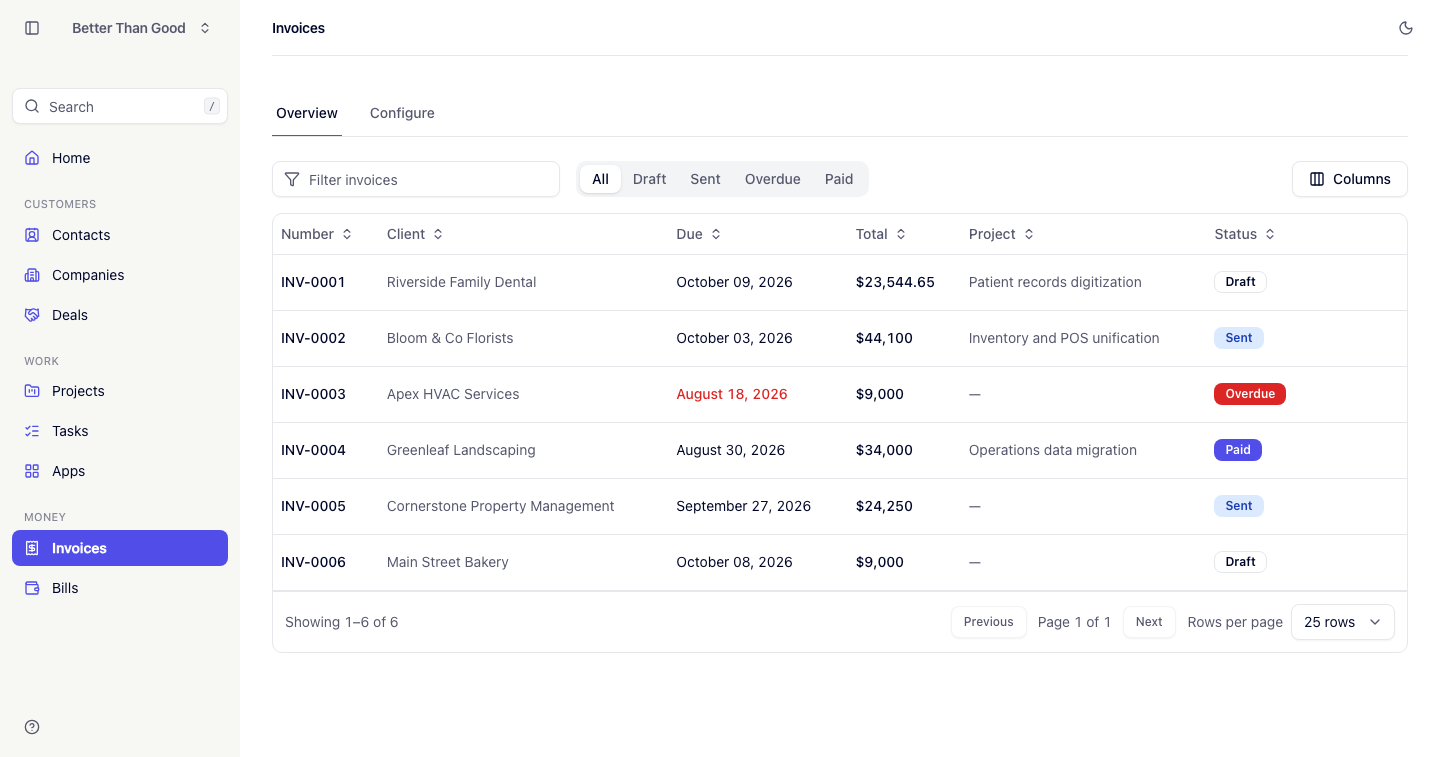
An invoice has three statuses: draft, sent and paid, set by the file that imported it. A sent invoice past its due date is shown as overdue. It stays overdue until its status changes to paid.
Bringing invoices in
Settings → Data → New import, admin-only. See Importing data for the file format, one row per line item grouped by invoice number.
A company named on an invoice that the account does not have is created from the row, so a client only ever mentioned on a bill still ends up in Companies.
An invoice
Billed-to company and contact, issue and due dates, subject, currency and notes, followed by its line items and totals.
Totals
Each line is calculated separately: quantity multiplied by unit price, less the line’s discount. Tax is calculated per line on the result, not on the invoice subtotal, and stated as its own row per tax rate.
The totals block shows Subtotal, Discount when above zero, one row per tax rate, and Total.
The invoices list
Tabs: All, Draft, Sent, Overdue, Paid. The Home dashboard links into these tabs.
Configure, admin-only, is the door to the Data screen’s invoice import (see Importing data).
Deleting
Deleting a company deletes its invoices (see Companies). To keep invoice records, export them first (see Exporting data).
Next
- Importing data: the invoice CSV format and duplicate handling.
- Exporting data: downloading invoices as CSV.
- API and CLI: reading invoices from a script or an agent.