
Importing data
WORK imports contacts, companies, deals and invoices from CSV files.
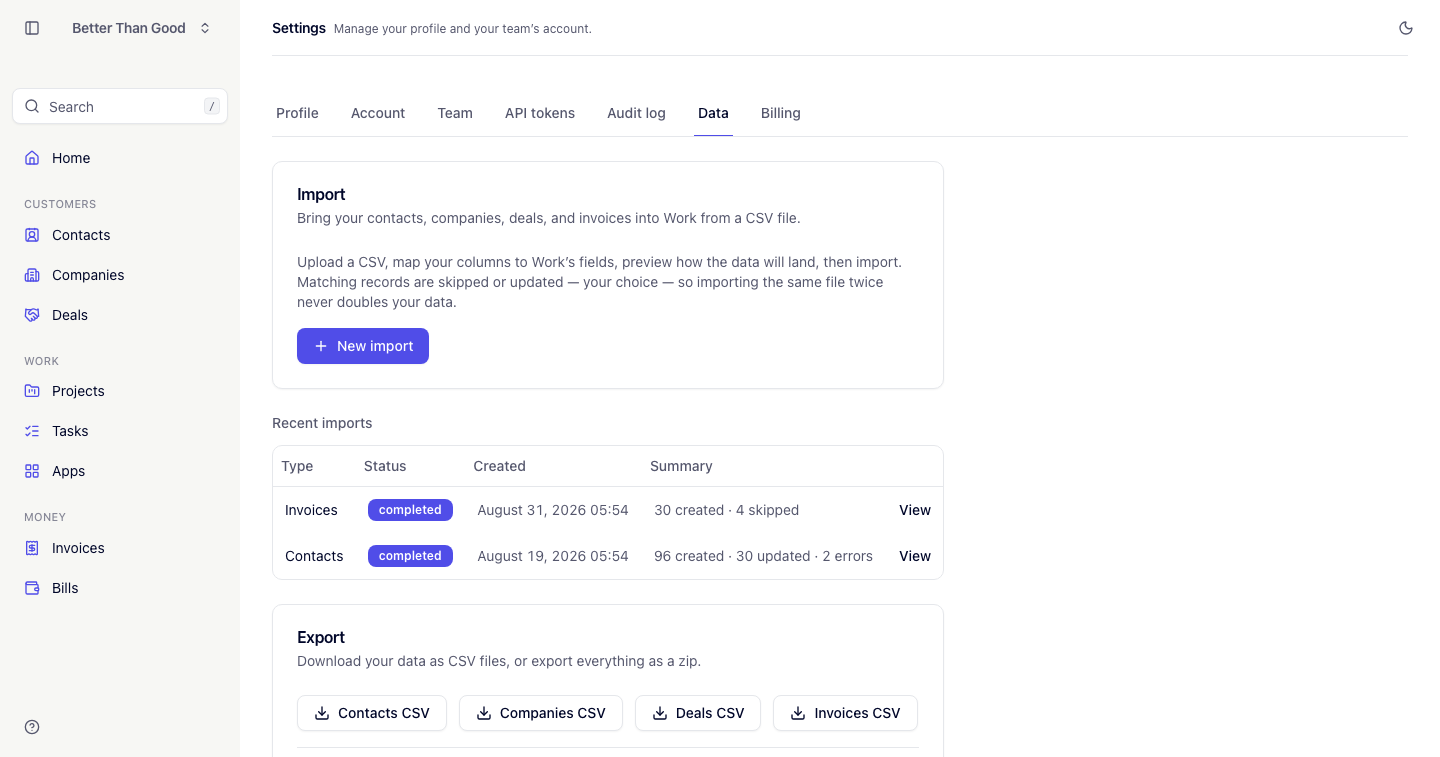
Find it at Settings → Data. Importing is admin-only.
File requirements
- One record type per file. Import companies first, then contacts, then deals, so that later imports can reference existing records.
- Headers in the first row. Header names are mapped in step two.
- Up to 5,000 rows per file.
- CSV only. XLSX files are rejected.
A sample CSV is available for each record type.
The five steps
1. Upload
Choose Contacts, Companies, Deals or Invoices, select the file and continue.
2. Map columns
WORK reads the headers and pre-selects a WORK field for each, based on the header name.
Each column has a dropdown holding the available WORK fields and — Skip —. Unmapped columns are ignored.
| Type | Available fields |
|---|---|
| Contacts | First name, Last name, Email, Phone, Title, Company |
| Companies | Name, Domain, Address |
| Deals | Name, Value, Stage, Expected close on, Company, Contact |
| Invoices | Number, Company, Contact, Status, Issue date, Due date, Currency, Subject, Notes, Line description, Line quantity, Line unit price, Line tax rate |
For deals, Stage takes one of lead, qualified, proposal, won, lost. Company and Contact columns are matched by name against existing records.
For invoices, one CSV row is one line item: rows sharing a Number become one invoice with a line per row. A Company named on a row that the account doesn’t already have is created from that name, rather than failing the row. Contact is matched by email.
Duplicate handling
Set If a record already exists to:
- Skip it (default): the existing record is left unchanged.
- Update it: the existing record is overwritten with the file’s values.
For an invoice, updating replaces its fields and every line item with what the file has — there’s no partial merge of line items.
3. Preview
The first five rows are shown as they will be saved, each marked OK or Error with the reason.
Rows with errors do not block the import. They are skipped.
4. Confirm and import
Press Confirm and import. The import runs in the background with a progress bar showing a percentage and “x of y rows”. The page can be closed while it runs.
5. The report
On completion, the Data screen shows a summary and the import’s page shows the full result:
| Count | Meaning |
|---|---|
| Created | New records added |
| Updated | Existing records overwritten |
| Skipped | Existing records left unchanged and rows with errors |
| Errors | Listed per row with a reason |
The last 20 imports are listed on the Data screen with their status.
Re-running an import
Records are matched on an identifying field: email for contacts, name for companies, invoice number for invoices. Importing the same file twice skips or updates existing records according to the duplicate setting.
Common errors
| Problem | Cause |
|---|---|
| “Must be a CSV” | The file is XLSX. Re-export as CSV |
| Contacts imported without their company | The companies did not exist yet. Import companies first |
| A deal’s stage is blank or wrong | Stage must be lead, qualified, proposal, won or lost |
| An invoice’s line tax rate is rejected | Line tax rate must be a number, for example 10 for 10% |
| Dates rejected | Use YYYY-MM-DD |
| File over 5,000 rows | Split the file into batches |
| Names in one column | Split into first and last name columns before importing |
Alternatives
For an ongoing sync rather than a one-time migration, use the API or the CLI, which create contacts, companies and deals directly. Invoices are read-only through both — CSV import is the only way to bring an invoice in.